Find who moved a deadline
-
Open your project’s Slipwatch tab.
-
In the row of pickers under Due-date changes, select the one you need:

- Parent, to find an epic: type its name or key.
- Changed by, for one person’s changes.
- Assignee, for the work assigned to someone when the date changed.
- Changed on, for a period: Last 7 days, Last 30 days, This month, Last month, or your own dates under Custom.
- Days moved, for kinds of change: Later, Later by 7 days or more, Earlier, Last-minute, For someone else or First due dates.
- Work type, Reason and Work items (All, Open or Done).
-
Tick what you want and select Apply, or press Enter. The picker shows how many you chose, for example Changed by: 2.
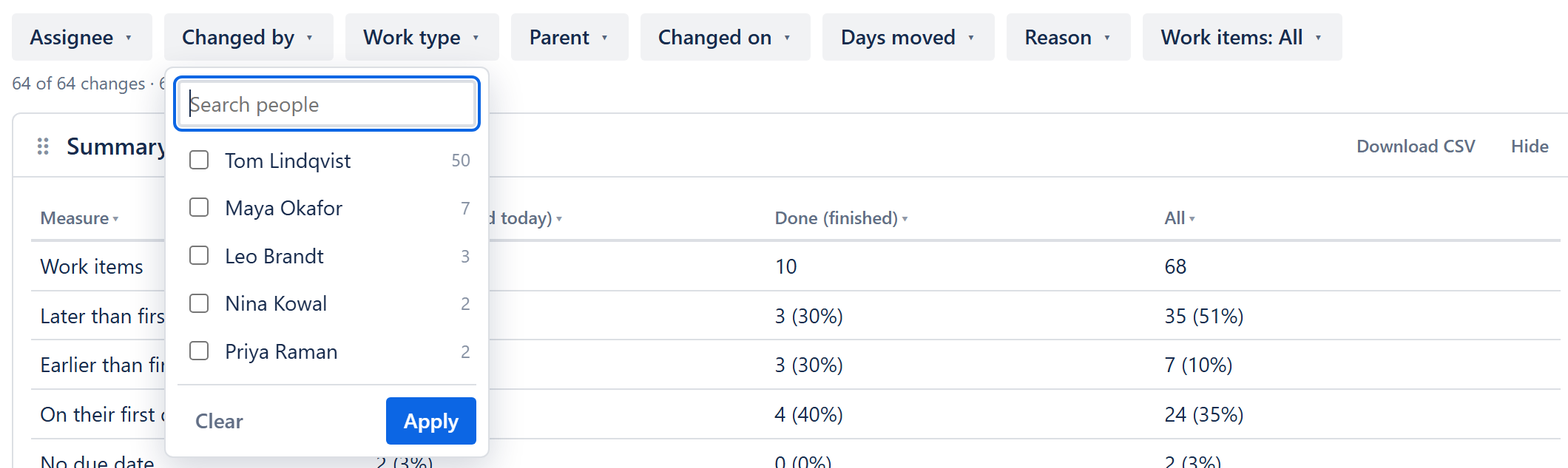
Every block on the page now counts only the matching changes. The line under the pickers says how many, for example 12 of 64 changes · 9 work items. To start again, select Clear all.
To see one work item’s whole story, select its key in any table. Its Slipwatch panel lists every change to its due date.
Good to know: Changes with no reason ignores these pickers on purpose: it’s the project’s to-do list. It has its own Changed by and Assignee.
Next: Share the report
© 2026 Morriblaze Ltd · Privacy policy