Set up Enforce
Before you begin:
- You need to be a Jira admin.
- Enforce needs Jira Standard or higher. On the Free plan, Jira doesn’t let anyone change permission rules, so the Enforce card says so instead of showing a button.
- Enforce isn’t available for team-managed projects. They have no permission rules to lock.
- Locking dates also takes away ranking on the board and backlog, dragging bars on the timeline and bulk editing due dates. People change dates through Slipwatch instead. See Change a due date when it’s locked.
-
In the project, go to Space settings > Apps > Slipwatch.
-
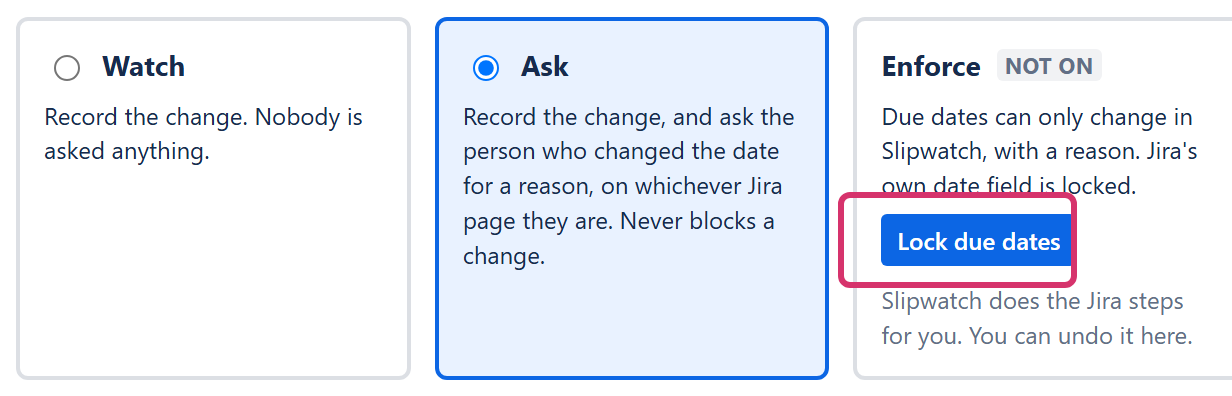
Under When a due date changes, on the Enforce card, select Lock due dates.
-
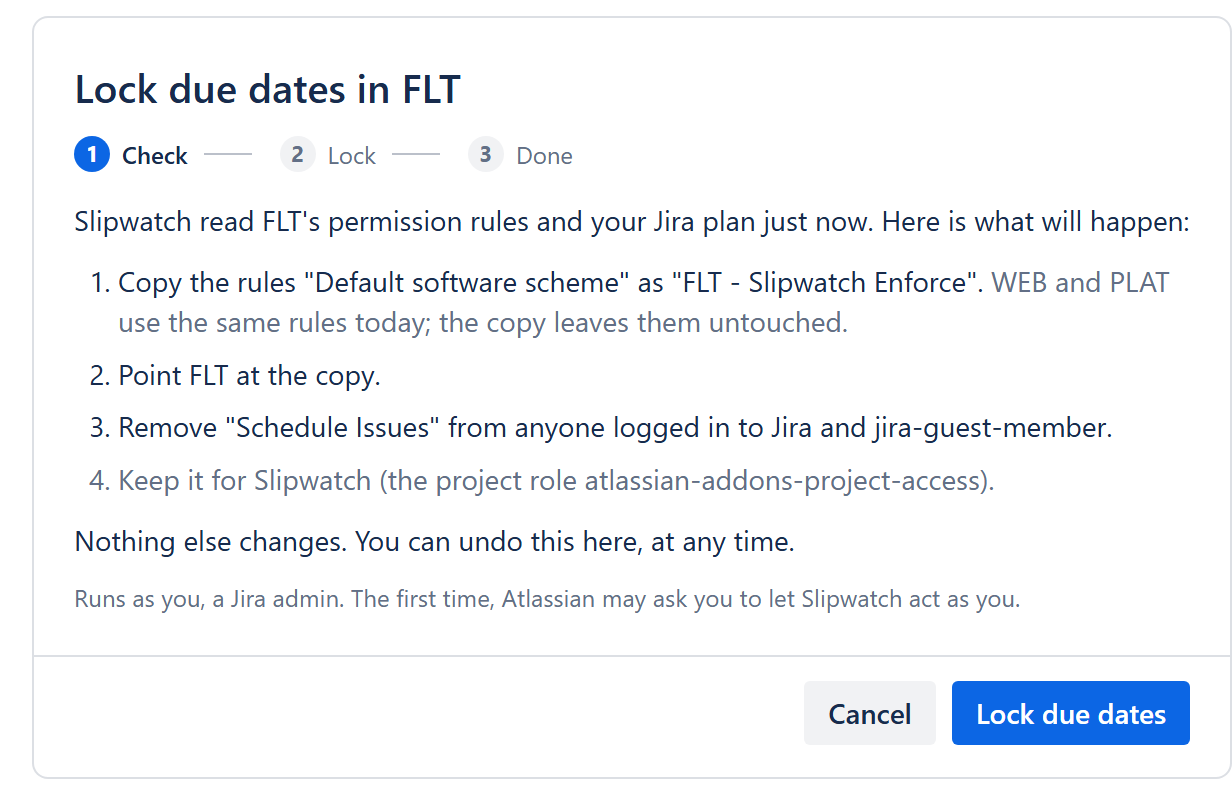
Read what will happen. Slipwatch checks the project’s permission rules and your Jira plan, then lists each step in plain words:
- If other projects use the same rules, Slipwatch first copies them as your project’s key - Slipwatch Enforce and points this project at the copy, so the other projects are untouched. If the project already has its own rules, these two lines say Already done.
- It removes Schedule Issues from everyone who holds it, and names each one.
- It keeps it for Slipwatch, so Slipwatch can still change dates.
Nothing else changes.
-
Select Lock due dates. Each step shows its result as it happens. Keep the page open until it finishes.
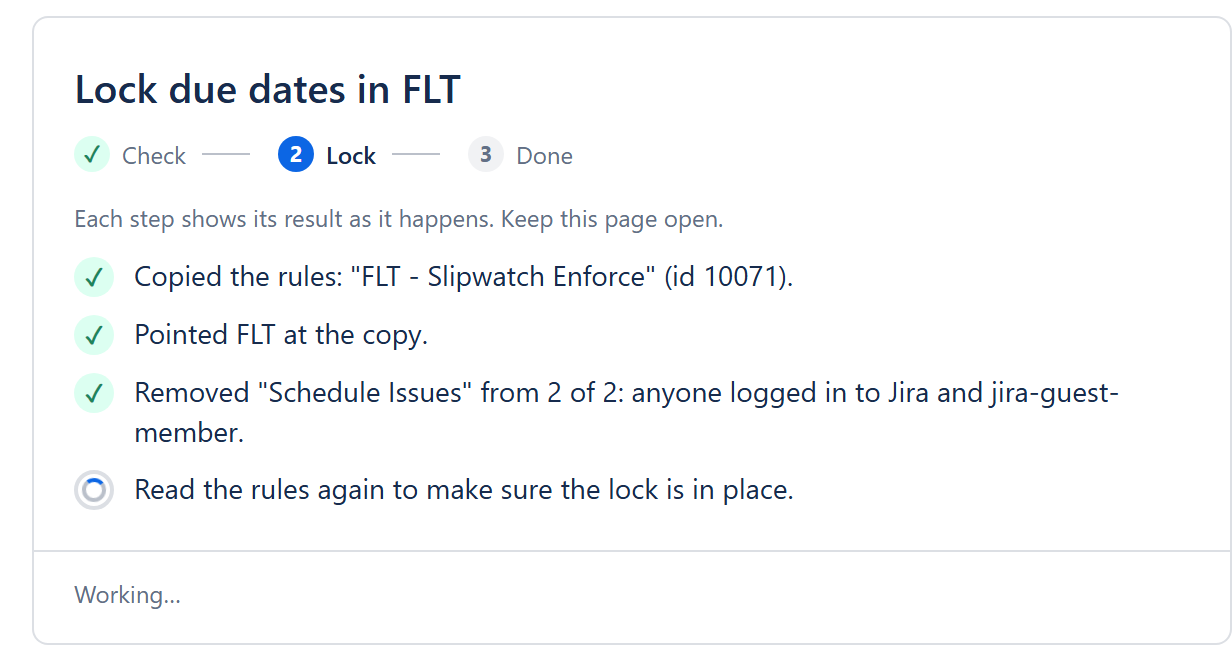
If Jira refuses a step, Slipwatch stops there, shows Jira’s own message and says what was already done. Nothing is retried on its own. Select Undo what was done to put things back, or Close to leave them.
-
When it says Enforce is on., select Done. The Enforce card now reads On.
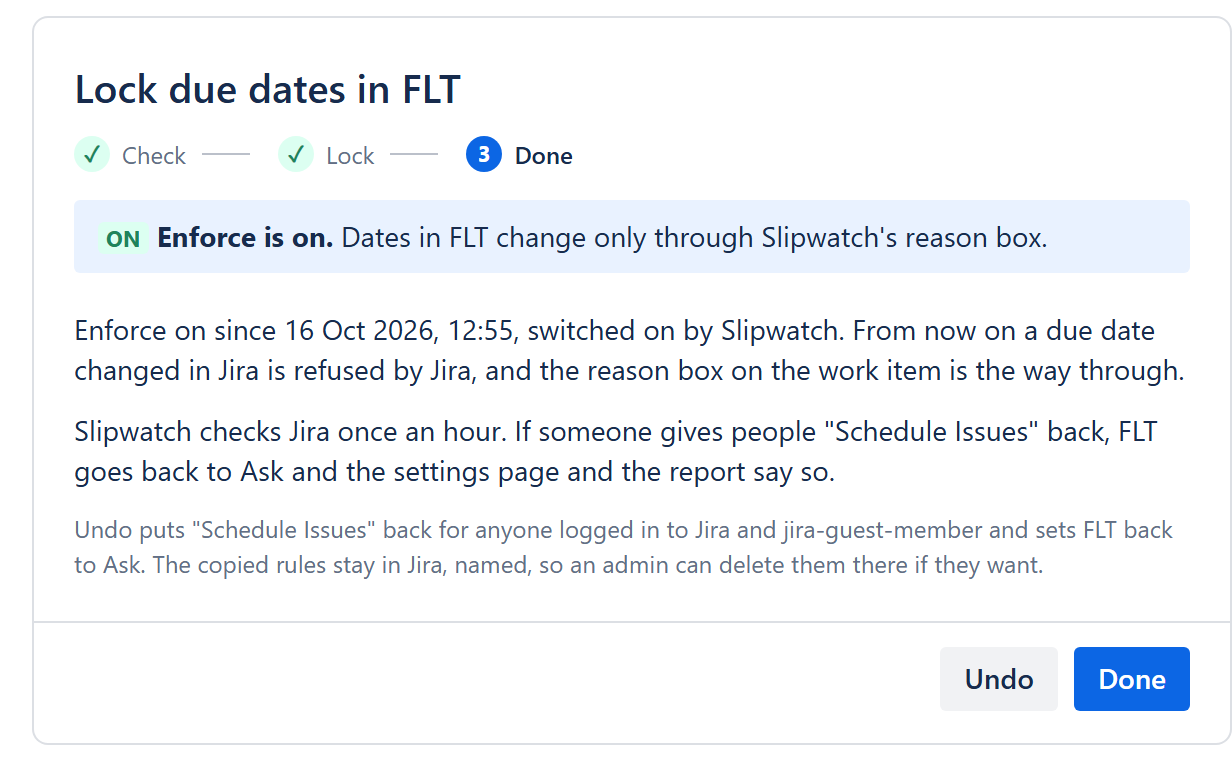
Slipwatch checks Jira once an hour. If someone gives people Schedule Issues back in Jira, the project goes back to Ask, and the settings page and the report say so.
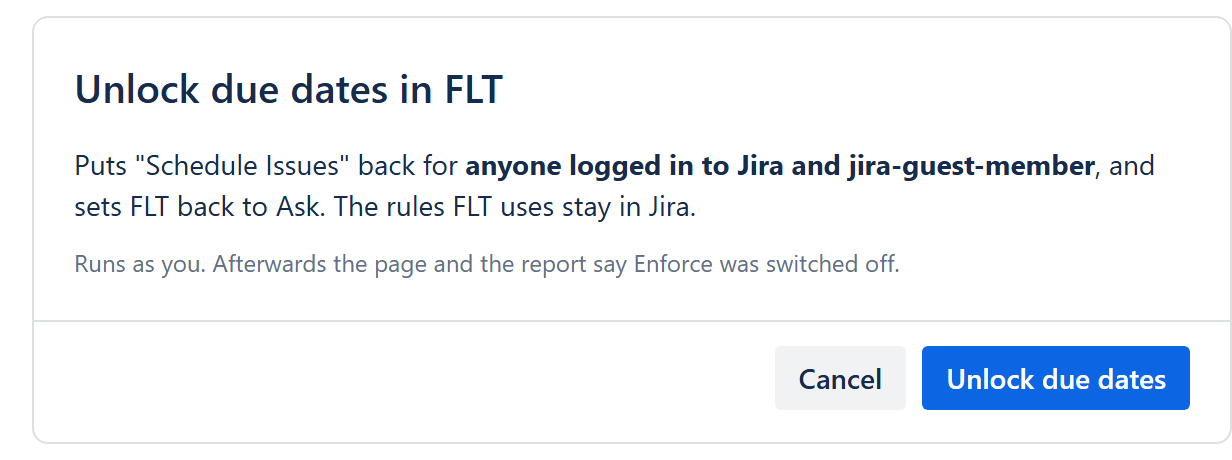
On the Enforce card, or on the last screen of the wizard, select Undo, then Unlock due dates. Slipwatch gives Schedule Issues back to everyone it took it from and the project goes back to Ask. The copied rules stay in Jira, so an admin can delete them there if they want.
© 2026 Morriblaze Ltd · Privacy policy