Change a due date when it's locked
In a project that uses Enforce, Jira’s own due date field is locked. Clicking it does nothing, and Jira shows no message. You change the date in Slipwatch instead, with a reason.
-
Open the work item. On the right, open the Slipwatch panel and select Change due date.

-
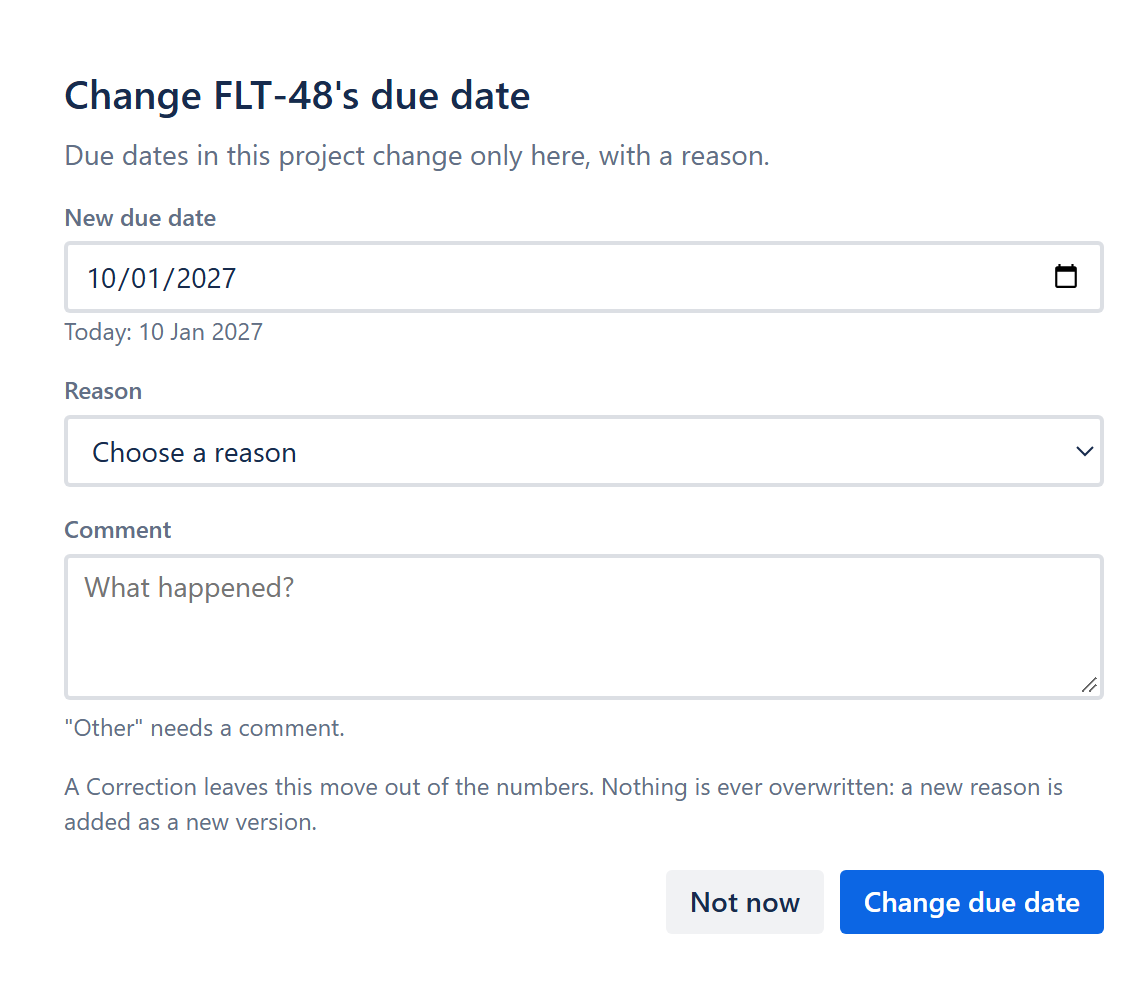
Under New due date, choose the date. The line under it shows today’s due date.
-
Under Reason, choose why the date is moving. Add a few words under Comment if they help. A comment is optional, unless your project requires one or you chose Other.
-
Select Change due date. The panel says Due date changed. Your reason is saved.
If the box says the reason wasn’t saved, don’t change the date again: the date did move. The change is now listed with no reason, so add the reason there. See Fill in missing reasons.
Good to know: the lock also stops people ranking the board or backlog, dragging bars on the timeline and bulk editing due dates.
© 2026 Morriblaze Ltd · Privacy policy