Fill in missing reasons
You can add a missing reason in two places: on the work item, or in the report.
On the work item
Section titled “On the work item”-
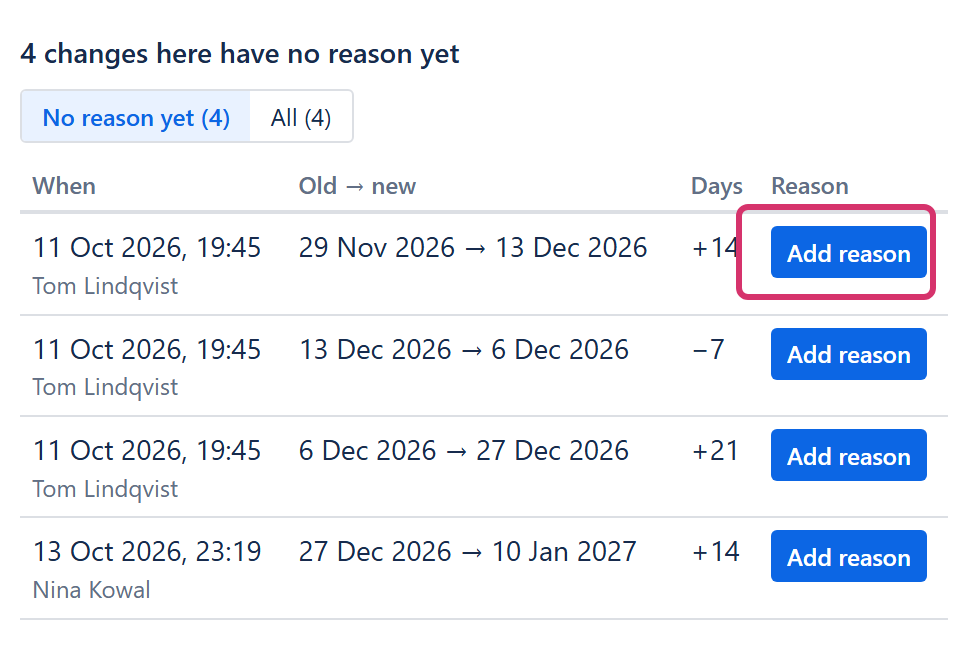
Open the work item. On the right, open the Slipwatch panel. Its header says Why dates moved.
The panel lists the work item’s due-date changes. It opens on No reason yet when some changes have none; select All to see every change.
-
On the change you want to explain, select Add reason. The reason box opens.
-
Choose a reason, add a comment if it helps, and select Save reason. See When Slipwatch asks you for a reason for what each part of the box does.
To change a reason that was already given, select Correct under it. The new reason is saved as a new version; the old one stays.
In the report
Section titled “In the report”-
Open your project’s Slipwatch tab and go to Changes with no reason. This list is the project’s to-do list: the filters at the top of the page don’t change it.
-
To see only some people’s changes, use the list’s own Changed by and Assignee pickers.
-
Select Add on a row. The reason box opens. Save the reason, and the row leaves the list.
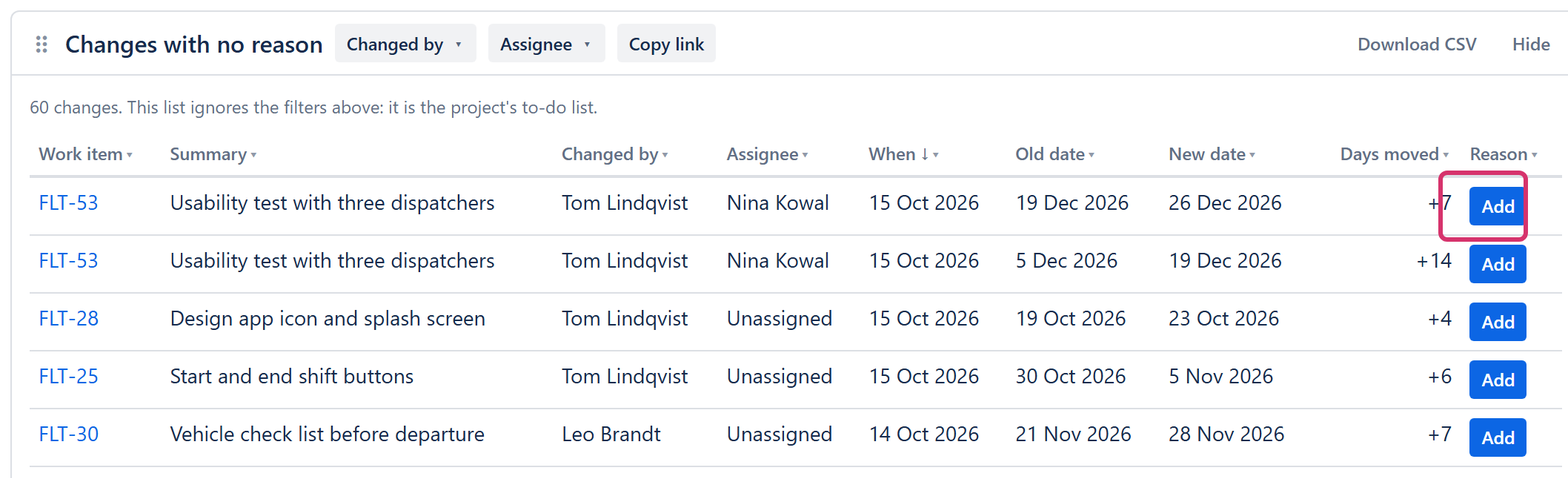
To send someone their own list, set Changed by to them and select Copy link. The link opens the report with the list already filtered.
© 2026 Morriblaze Ltd · Privacy policy